Apple Watch Live Rewind & Siri Recap: Supported Models, Setup and Privacy
Apple’s watchOS 27.3 developer beta brings two new conversation tools to Apple Watch Series 12 and Apple Watch Ultra 4: Live Rewind, which displays a text snippet of the previous 15 seconds, and Siri Recap, which turns opted-in conversations into short notes. But owning a new Apple Watch is not enough. Apple requires a specifically listed iPhone, Apple Intelligence and Siri AI beta, English language settings, an eligible age, and a supported region. This guide checks the exact requirements and explains what the watch actually processes, what gets saved, and what disappears.
Quick answer: What do you need for Live Rewind and Siri Recap?
You need an Apple Watch Series 12 or Apple Watch Ultra 4, one of Apple’s specifically listed iPhone models, Apple Intelligence and Siri AI (Beta) enabled on the paired iPhone, English at launch, an account holder aged 18 or older, and a location outside the EU and China. To use the new features in the current test release, you also need the watchOS 27.3 developer beta and compatible iPhone beta software. The iPhone 16e is excluded; the iPhone 17e is included.
Important: Sound Recognition and automatic Shazam have broader iPhone compatibility. They work with Apple Watch Series 12 or Ultra 4 paired with an iPhone 11 or later, or iPhone SE (2nd generation or later), running iOS 27.
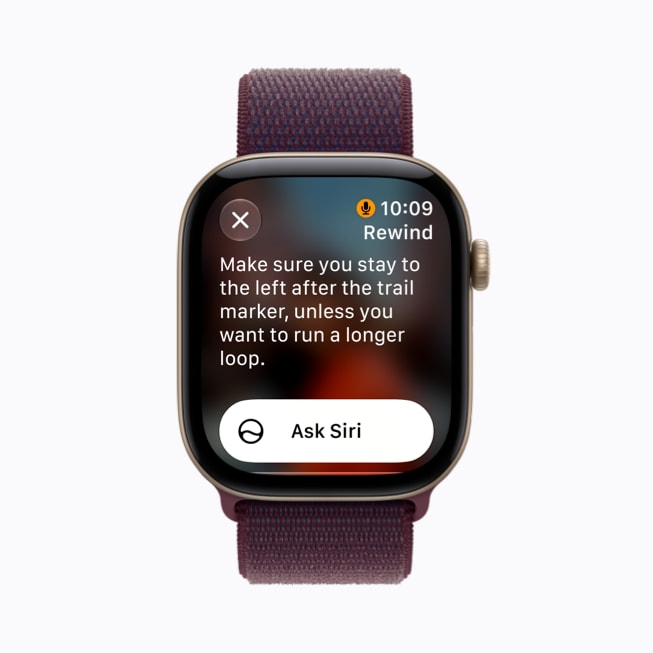
Double-press the Digital Crown to view a short text snippet of the last 15 seconds of speech.
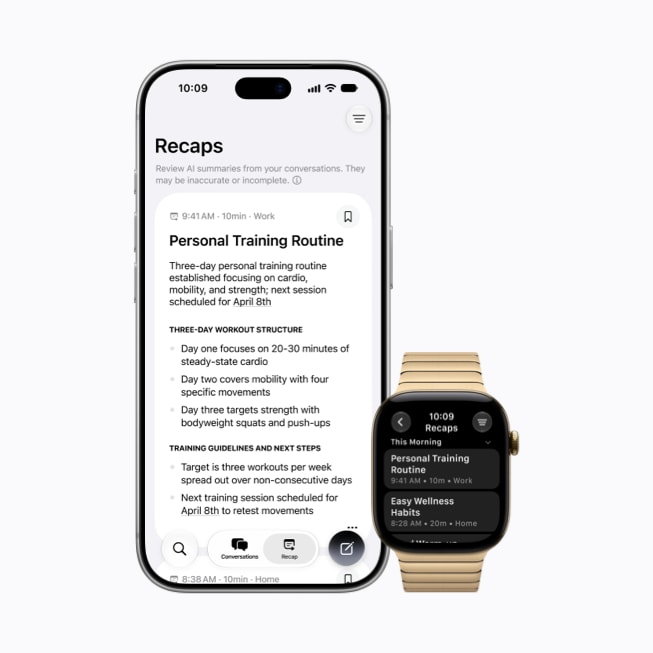
Review a title and key points from opted-in conversations in the Siri app.
Interactive Apple Watch Live Rewind & Siri Recap checker
Choose your devices and settings. The checker reports the two newer beta features separately from Sound Recognition and Shazam, which have broader iPhone support.
Exact Apple Watch and iPhone compatibility
Apple lists only two watch families for Audio Intelligence: Apple Watch Series 12 and Apple Watch Ultra 4. The paired iPhone requirement changes depending on which Audio Intelligence feature you want to use.
| Feature group | Required Apple Watch | Paired iPhone requirement | Additional requirements |
|---|---|---|---|
| Sound Recognition | Series 12 or Ultra 4 | iPhone 11 or later, or iPhone SE (2nd generation or later) | iOS 27; enable Detect using Apple Watch in Sound Recognition settings |
| Automatic Shazam / Music Recognition | Series 12 or Ultra 4 | iPhone 11 or later, or iPhone SE (2nd generation or later) | iOS 27; enable Music Detection in Smart Stack settings |
| Live Rewind | Series 12 or Ultra 4 | One of the exact 12 models below | Apple Intelligence + Siri AI (Beta), English, 18+, outside EU and China; watchOS 27.3 beta for current testing |
| Siri Recap | Series 12 or Ultra 4 | One of the exact 12 models below | Apple Intelligence + Siri AI (Beta), English, 18+, outside EU and China; watchOS 27.3 beta for current testing |
The 12 iPhones Apple lists for Live Rewind and Siri Recap
Do not confuse iPhone 16e with iPhone 17e. Apple lists iPhone 17e, but excludes iPhone 16e from the requirements for Live Rewind and Siri Recap. An iPhone 16e is still newer than iPhone 11, so it falls within the broader generation requirement for Sound Recognition and Shazam when running iOS 27; it is not eligible for the two new conversation features.
Apple’s current support page says the newer features are unavailable in the EU at launch and unavailable in China. It also says they are not available to users under 18 and are available in English first. These limits apply to Live Rewind and Siri Recap; do not automatically apply them to the two existing Audio Intelligence features.
What the four Audio Intelligence features actually do
Advertisements
1. Live Rewind
Double-press the Digital Crown to see a text snippet of the previous 15 seconds. It is meant to help recall something you just missed. It does not continuously transcribe the day in the background.
2. Siri Recap
When you opt in and its schedule is active, Siri Recap processes nearby conversation audio and creates a high-level summary with a title and key points. It is not a word-for-word transcript and does not label individual speakers.
3. Sound Recognition
The watch can detect important sounds such as sirens, alarms, doorbells and a crying baby, then notify you. Apple highlights its usefulness for people who are Deaf or hard of hearing.
4. Automatic Music Recognition with Shazam
The watch can identify music playing nearby and show the song title and artist in the Smart Stack Music Recognition widget, without needing to tap the widget first.
How to enable Live Rewind and Siri Recap
These features are opt-in, not enabled automatically. In the current developer beta, The Verge also found that Live Rewind required an initial microphone calibration with the paired phone. Treat that as an observed beta onboarding step; Apple’s support instructions focus on enabling the feature in the Watch app.
For the current test, install watchOS 27.3 developer beta and compatible iPhone beta software. The iPhone must also have Apple Intelligence and Siri AI (Beta) enabled.
On the iPhone, open Watch → Siri → Live Rewind. Turn on Double Click Digital Crown. Follow any on-screen microphone calibration prompts during setup.
When you want to recall the last few seconds, double-press the Digital Crown. The watch displays the text snippet and plays an audible chime.
In the iPhone Watch app, open Siri → Siri Recap and opt in. Choose a time/location schedule or use manual controls. You can also toggle it from Control Center on the watch.
Apple Watch Live Rewind and Siri Recap privacy: what is processed and saved?
Apple says Audio Intelligence does not create or store audio recordings. That does not mean Siri Recap does nothing with audio: while the feature is opted in and active under your selected schedule, it processes nearby conversation audio to produce notes. The distinction is between temporary protected processing and saving a playable recording.
How Siri Recap data moves
Apple says the paired iPhone condenses the transcript to less than half its original length before the encrypted text is sent to Private Cloud Compute. The condensed text removes filler and redundancies while retaining the main topics. Apple says the data sent to Private Cloud Compute is not stored or accessible to Apple. Saved summaries and saved Live Rewind snippets can sync through iCloud with end-to-end encryption when the account uses iCloud, two-factor authentication and a device passcode. Apple also warns that server-side Audio Intelligence features, including Siri Recap and Live Rewind follow-up requests, may be subject to daily usage limits.
Retention and bystander signals
| Item | What Apple says happens | What you can do |
|---|---|---|
| Live Rewind snippet | Disappears from the watch about 30 seconds after the display dims. | Tap Ask Siri or save the snippet to the Siri app to keep it. |
| Siri Recap summary | Auto-deletes after seven days if you do not save or export it. | Review, edit, delete or export it from the Siri app. |
| Live Rewind activation | An audible chime plays from the watch speaker even in Silent Mode or with headphones connected. A full-screen animation and microphone indicator also appear. | People nearby receive audible and visual signals when Live Rewind is activated. |
| Siri Recap while using headphones | Summarisation pauses when media or a call is playing through paired headphones, or when AirPods/Beats Active Noise Cancellation is on. | Check the schedule and Control Center status before relying on a recap. |
What’s different between Live Rewind and Siri Recap?
| Question | Live Rewind | Siri Recap |
|---|---|---|
| Purpose | Recover a short piece of speech you just missed | Jog your memory about a longer conversation |
| Activation | Double-press Digital Crown | Opt in; choose schedule or manual control |
| Output | Text snippet of previous 15 seconds | High-level title and key points, not a transcript |
| Processing | On-device; Ask Siri/save action can send the snippet securely to Private Cloud Compute | Watch and iPhone Secure Exclaves plus Private Cloud Compute |
| Default retention | About 30 seconds after display dims | Seven days unless saved/exported |
| Visible / audible alert | Chime, full-screen animation and microphone indicator | Watch notifies you when a scheduled session starts or stops |
What the first hands-on tests reveal
Advertisements
The Verge’s November 3 hands-on found that Live Rewind worked in a quiet home-office test, but it sometimes misheard words and required practice to time the Digital Crown double-press. The reviewer also needed an initial microphone calibration. Its first Siri Recap identified the topics of a meeting but filtered out some sensitive details, making the resulting notes less complete. These are early developer-beta observations, not a final product review; performance may change before public release.
That is why this guide treats Siri Recap as a memory aid, not a reliable meeting recorder. If you need a word-for-word transcript, Apple’s own description says Siri Recap is not designed to provide one.
Frequently asked questions
Which Apple Watch models support Live Rewind and Siri Recap?
Apple lists Apple Watch Series 12 and Apple Watch Ultra 4. Both use the S11 chip with Secure Exclave. Series 11, Ultra 3 and SE models are not on Apple’s supported list for these Audio Intelligence features.
Which iPhones are compatible with Live Rewind and Siri Recap?
Apple lists iPhone 16, 16 Plus, 16 Pro, 16 Pro Max; iPhone 17, 17e, 17 Pro, 17 Pro Max; iPhone Air; iPhone 18 Pro, iPhone 18 Pro Max; and iPhone Duo. Apple Intelligence and Siri AI (Beta) must also be enabled on the paired iPhone.
Does iPhone 16e support Live Rewind?
No. Apple excludes iPhone 16e from the paired-iPhone requirements for Live Rewind and Siri Recap. iPhone 17e is on the list. iPhone 16e can still meet the broader phone-generation requirement for Sound Recognition and Shazam when running iOS 27.
Are Live Rewind and Siri Recap available in the EU or China?
Apple says these two features will not initially be available in the European Union and are not available in China. Check Apple’s current support document for regional changes; do not assume the same restriction automatically applies to Sound Recognition or Shazam.
Can people under 18 use Live Rewind or Siri Recap?
No. Apple’s latest Support Document 148354, published November 4, 2026, says Live Rewind and Siri Recap are not available for users under 18. Older cached versions may show earlier wording.
How do I turn on Live Rewind?
On the paired iPhone, open the Watch app, tap Siri, tap Live Rewind and turn on Double Click Digital Crown. Then double-press the Digital Crown on the supported watch. Follow any on-screen calibration prompt during beta setup.
Does Siri Recap record conversations or create a full transcript?
Apple says Audio Intelligence does not create or store audio recordings. Siri Recap processes audio while the user has opted in and its schedule is active, but produces a high-level summary rather than a complete transcript. Protected processing involves the watch and paired iPhone Secure Exclaves, then encrypted condensed text is sent to Private Cloud Compute for the summary.
How long do Live Rewind snippets and Siri Recap summaries remain?
A Live Rewind snippet disappears from Apple Watch about 30 seconds after the display dims unless you save it or tap Ask Siri. Siri Recap summaries auto-delete after seven days if you do not save or export them.
Does Live Rewind make a sound in Silent Mode?
Yes. Apple says an audible chime plays from the Apple Watch speaker even in Silent Mode or with headphones connected. A full-display animation and microphone indicator also appear.
Do Sound Recognition and Shazam need the same iPhone as Live Rewind?
No. Sound Recognition and automatic Music Recognition with Shazam support iPhone 11 or later, or iPhone SE (2nd generation or later), with iOS 27. Live Rewind and Siri Recap require the newer 12-model iPhone whitelist.
Last checked November 5, 2026. Apple’s Support Document 148354 was checked in its November 4, 2026 version. Beta availability and hands-on details were cross-checked against Apple’s Newsroom and reporting from MacRumors, 9to5Mac and The Verge.
- Apple Support 148354 – Audio Intelligence features, compatibility and privacy
- Apple Newsroom – Apple Watch Series 12 and Audio Intelligence
- MacRumors – watchOS 27.3 adds Live Rewind and Siri Recap
- 9to5Mac – watchOS 27.3 developer beta details
- The Verge – first hands-on with Apple Watch Audio Intelligence
Disclaimer: Ultimate Info Guide is an independent publication and is not affiliated with or endorsed by Apple Inc. Beta features and requirements can change before general availability. Always check Apple’s latest documentation before updating or buying a device.