Gemini on Apple CarPlay: Setup, Features and Fixes
Google is bringing its Gemini Live conversational assistant directly to Apple CarPlay. Here is how to set it up, what your iPhone and Google account need, what works in different countries, and what to check when the Gemini icon does not appear.
What did Google launch for Apple CarPlay?
Google’s November 11 announcement brings the Gemini app directly to the CarPlay display. It is designed around Gemini Live, so drivers can speak naturally, interrupt to add information, change the subject, pause, or resume a recent conversation. Google says conversations sync with the Gemini app on the iPhone, allowing a user to continue from the phone after parking. Read Google’s announcement.
This is more than a mention of Gemini in a navigation app. It is a separate CarPlay app experience for general voice conversations. Google describes use cases such as checking the day’s calendar, catching up on email, asking about local places, rehearsing a presentation and brainstorming an idea.
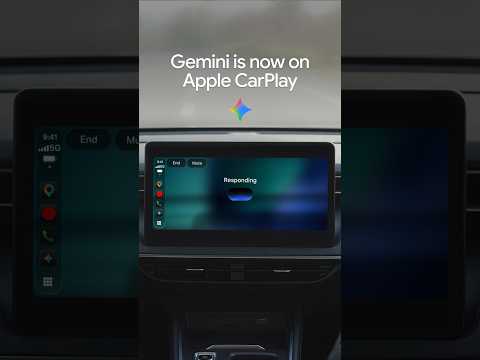
Official 21-second Google demo of Gemini on Apple CarPlay. Video not loading? Watch it on YouTube.
Gemini in Google Maps vs the standalone Gemini app
Advertisements
This is an easy point to misunderstand. Gemini-related voice assistance has already appeared in Google Maps on CarPlay. The November 2026 announcement is about the standalone Gemini app arriving on the CarPlay home screen. The purpose is broader than asking a navigation assistant for help with a route.
Gemini inside Google Maps
Use the assistant in the context of a Maps journey: ask about places, destinations or a navigation-related question while using Google Maps.
This is not the dedicated Gemini app announced on November 11.
Gemini Live on CarPlay
Open Gemini from the CarPlay screen for a broader conversation. Google highlights calendar questions, email summaries, local recommendations, brainstorming and presentation practice.
Recent chats can be resumed, and conversations sync back to the iPhone.
Think of the distinction this way: Maps is centred on a journey; the standalone Gemini app is centred on a conversation. Do not assume that every feature described for one entry point works identically in the other.
How to set up Gemini on Apple CarPlay
Complete the phone-side preparation while parked. Google lists three specific prerequisites before opening the app from the CarPlay display.
- Update the Gemini app.
Open the App Store on the iPhone, find Google Gemini and install any available update. Google says to use the latest version of the app. - Allow microphone access.
On the iPhone, open Settings, find Gemini in the app list or go to Privacy and Security, then Microphone. Make sure Gemini is permitted to use the microphone. - Start Gemini Live once on the iPhone.
Open Gemini, tap Live or swipe to the Live experience, follow the first-use prompts and start a short conversation. Google explicitly lists prior use of Gemini Live on the phone as a setup requirement. - Connect the iPhone to CarPlay.
Use your normal wired or wireless CarPlay connection. Confirm that CarPlay itself is working before troubleshooting Gemini. - Open Gemini from the CarPlay screen.
Look for the Gemini app icon or its place in the CarPlay side rail. Tap it to start a new conversation or resume a recent one.
Google’s launch post does not publish a separate Gemini-specific vehicle compatibility list. The car must support Apple CarPlay, and the iPhone must support the CarPlay voice-app category. Apple explains how to use CarPlay and customise its apps.
Gemini on CarPlay readiness checker
Use this checklist to identify which setup step to check next. It cannot confirm Google’s server-side rollout or guarantee that Gemini has been enabled for a particular account or vehicle.
Check your setup
Choose the closest answer for each item. Select “Not sure” when you have not checked it yet.
Gemini not showing on Apple CarPlay? Try these fixes
If Gemini does not appear, do not assume your car is incompatible. Work through the steps in order so you can separate a basic CarPlay issue from a Gemini app, permission or rollout issue.
If the CarPlay home screen does not load, fix the phone-to-car connection first using Apple’s CarPlay troubleshooting and setup guidance.
Install the latest Gemini app update and check that the iPhone runs iOS 26.4 or later for the voice-based conversational app category.
Enable microphone access and start Gemini Live on the iPhone at least once. Then reconnect to CarPlay.
On the iPhone, open Settings → General → CarPlay → select your vehicle → Customise. If Gemini is listed under available apps, add it or move it higher in the list. Apple says only CarPlay-supported apps appear there.
Disconnect and reconnect the iPhone, or restart the phone and car infotainment system when safely parked. Check for the Gemini icon again.
Google says the feature is rolling out globally across supported Gemini Live languages, but it has not published a per-account activation schedule or a complete vehicle-by-vehicle compatibility list. Do not assume a missing icon proves that the vehicle is unsupported.
What if Gemini appears in Settings but not on the CarPlay home screen? Use the Customise screen to add it or move it to a visible position. If it is already enabled, reconnect the phone and check the CarPlay app launcher or side rail.
iPhone, car, country and language compatibility
Advertisements
There are several separate compatibility questions. A country can support the Gemini iPhone app while a particular Gemini Live feature is still rolling out. A vehicle can support CarPlay while the Gemini app is not yet available to the connected account. Check each layer independently.
| Requirement | What is confirmed | What is not confirmed |
|---|---|---|
| iPhone app | Google’s general Gemini iOS app requirements list iOS 16 or later. | This general app requirement is not the same as the CarPlay voice-app platform requirement. |
| CarPlay platform | Apple added voice-based conversational apps in iOS 26.4. | Google’s launch post does not list a separate Gemini-specific minimum iOS version. |
| Vehicle | The car or aftermarket system must support Apple CarPlay. | Google has not published a Gemini-specific list of makes, models or model years. |
| Country and language | Google says the CarPlay rollout is global across supported Gemini Live languages. | Google has not published a separate CarPlay-only country and language matrix. |
| Google account | Users need access to the Gemini app and Gemini Live for their account type. | Some connected-app capabilities differ between personal and work or school accounts. |
Google’s Gemini iPhone and iPad availability page lists iOS 16 or later for the general app and publishes the supported app languages and countries. It includes English, Hindi, Tamil and Telugu, among many others, and lists countries including the United States, United Kingdom, Canada, Australia and India.
That page is for the Gemini mobile app, not a dedicated CarPlay language matrix. Google’s CarPlay announcement says that the CarPlay rollout covers supported Gemini Live languages. Therefore, do not treat every language on the general iOS list as independently confirmed for the CarPlay experience unless Google specifically lists it for Gemini Live.
For vehicle support, use Apple’s CarPlay available-models directory and your vehicle owner’s manual. An aftermarket CarPlay receiver may also provide CarPlay even when the car did not include it from the factory.
What can you do with Gemini Live on CarPlay?
Google’s launch examples go beyond asking a chatbot a general question. The following are use cases Google specifically describes, although access to connected apps can depend on account type, permissions and feature rollout.
Check your calendar
Ask what is on your schedule, when the next appointment is, or help prepare for a meeting.
Example: “What does my day look like?”
Summarise email
Ask for a summary of unread messages or a long email thread, subject to the connected-app and account restrictions.
Example: “Catch me up on my unread emails.”
Find local places
Ask for a quick lunch recommendation or information about a landmark near the area you are heading to.
Example: “Suggest a quick lunch stop near my destination.”
Brainstorm or rehearse
Use Gemini Live as a sounding board to practise a presentation, prepare for a conversation or learn about a topic.
Example: “Help me practise my presentation.”
Because conversations sync with the Gemini app on the iPhone, Google says you can revisit the conversation after the drive. The phone is best used for reviewing or editing details when parked rather than handling it while the vehicle is moving.
Daily Brief, Gmail and work-account restrictions
This is one of the most important qualifications in Google’s announcement. The general CarPlay rollout and the Daily Brief feature do not have identical eligibility rules.
Daily Brief is not available to every CarPlay user
Google’s current Daily Brief help page says the feature is available to users aged 18 or older in the United States, signed in with a personal Google Account. It is currently English-only, requires eligibility for Personal Intelligence, connected Google Workspace apps and Memory, and is still rolling out gradually. A work, school or supervised Google Account is not eligible for Daily Brief under that help page. Check Google’s Daily Brief eligibility rules.
Google’s November 11 CarPlay announcement also notes that some personalization features, including Daily Brief, are unavailable to users under 18 and in the European Economic Area and Nigeria. Since the dedicated help page gives a narrower US-only eligibility rule, do not assume Daily Brief works globally just because Gemini on CarPlay is rolling out globally. The feature’s actual availability can change as Google expands it.
What about a work or school Google Account?
Google’s Gemini Live connected-app help page says that, for users signed in with a work or school account, only Google Calendar, Google Keep and Google Tasks can currently be used in Gemini Live chats. Gmail is not included in that work-account list. A user also needs an eligible Workspace plan or licence to access Gemini Apps. See Google’s Gemini Live connected-app guidance.
Gemini vs Siri vs ChatGPT on Apple CarPlay
Gemini is joining an app category that allows voice-based conversational assistants in CarPlay. It does not replace Siri, and each assistant has a different relationship with the phone’s services and account ecosystem.
| Assistant | How you access it | Standout point | Important limit |
|---|---|---|---|
| Gemini Live | Open the Gemini app from CarPlay. | Google account context, Gemini Live conversations and chat sync to the iPhone. | Connected-app and Daily Brief access vary by account and eligibility. |
| Siri | Use the built-in CarPlay Siri controls or supported voice activation. | Apple’s system assistant for CarPlay and iPhone functions. | It is a different assistant experience, not the Gemini app. |
| ChatGPT | Open the ChatGPT app from CarPlay and start or resume a voice conversation. | ChatGPT voice conversations and account chat continuity. | Some ChatGPT features are not available in CarPlay; it does not replace Siri. |
OpenAI’s current help page says ChatGPT in CarPlay is available globally on all ChatGPT plans on supported iPhones running iOS 26.4 or later, with the latest ChatGPT app and a CarPlay-compatible car. See OpenAI’s ChatGPT in CarPlay guide.
Apple’s CarPlay platform supports a dedicated category for voice-based conversational apps. This does not mean those apps become the iPhone’s default assistant or gain unrestricted control of vehicle and iPhone settings. Siri remains available for Apple’s built-in CarPlay functions. Apple’s CarPlay developer overview describes the supported app categories.
Privacy, chat history and safe use while driving
Google says Gemini conversations on CarPlay sync to the Gemini app on the iPhone. Separately, Google’s Gemini activity documentation says that when Keep Activity is on, Gemini Apps activity is stored in the user’s Google Account and can be reviewed or deleted through My Activity. For work or school accounts, activity and retention settings may be controlled by the Google Workspace administrator. Read Google’s Gemini activity and deletion guidance.
Before using email or calendar features in a vehicle, review which Google account is signed in and which Connected Apps are enabled. Avoid asking Gemini to read sensitive information aloud when passengers or other people may hear it.
Driving safety: Set up permissions and test the app while parked. Keep your attention on the road, obey local hands-free and distracted-driving laws, and stop somewhere safe before reading, editing or acting on detailed information. A voice interface is not a guarantee that every interaction is distraction-free.
Frequently asked questions
Is Gemini available on Apple CarPlay?
Yes. Google announced the dedicated Gemini app for Apple CarPlay on November 11, 2026. The rollout is global across supported Gemini Live languages, but availability can take time to reach every account.
How do I get Gemini on my CarPlay screen?
Update the Gemini app, enable microphone permission, use Gemini Live on the iPhone at least once, connect to CarPlay and tap the Gemini icon. If it is missing, check Settings → General → CarPlay → your vehicle → Customise.
Why is Gemini not showing in Apple CarPlay?
Check that ordinary CarPlay works, update the iPhone and Gemini app, enable microphone permission, start Gemini Live on the iPhone once and inspect the CarPlay Customise list. If it is still missing, the feature may not have reached your account yet.
Which iOS version is required for Gemini on CarPlay?
Apple introduced the voice-based conversational app category in iOS 26.4. That is the platform baseline for this type of CarPlay app. Google has not separately stated a Gemini-specific minimum iOS version in its November 11 announcement. The general Gemini iPhone app requirements page lists iOS 16 or later, but that does not by itself establish CarPlay compatibility.
Does Gemini on CarPlay work in India?
Google lists India among the countries where the Gemini iPhone app is available. Its general iOS app language list includes Hindi, Tamil and Telugu. Google says CarPlay is rolling out across supported Gemini Live languages, but it has not published a separate CarPlay-only country and language matrix. Check the Gemini app and CarPlay screen for actual availability.
Does Gemini on CarPlay work in the UK, Canada and Australia?
Google describes the CarPlay rollout as global across supported Gemini Live languages, and its general Gemini iOS app availability list includes the UK, Canada and Australia. That does not guarantee that every account will see the CarPlay app at the same time.
Can Gemini read my Gmail in CarPlay?
Google describes Gmail summaries and inbox catch-ups as use cases. However, Connected Apps availability depends on account type and permissions. Google’s current Gemini Live guidance lists only Calendar, Keep and Tasks for work or school accounts, so do not assume Gmail access on a managed account.
Is Gemini Daily Brief available to everyone?
No. Google’s current Daily Brief help page lists users aged 18 or older in the United States, using a personal Google Account and English, with additional Personal Intelligence and Connected Apps requirements. The feature is still rolling out gradually.
Does Gemini replace Siri on CarPlay?
No. Gemini is a separate app that you open from the CarPlay screen. Siri remains the built-in Apple assistant for CarPlay. The Gemini launch does not make Gemini the default iPhone or vehicle assistant.
Can Gemini control my car’s climate, windows or vehicle settings?
Do not expect it to act as a universal vehicle-control interface. Google announced Gemini Live as a voice conversation app for CarPlay. It has not announced general access to vehicle controls such as climate, windows or drive settings.
Do Gemini conversations appear on my iPhone?
Google says CarPlay conversations sync with the Gemini app on the iPhone, so you can continue or review the chat after parking. Gemini Apps activity settings determine how activity is stored and managed for your account.
Is Gemini on CarPlay free?
Google’s CarPlay announcement does not specify a separate CarPlay access fee. Access to the Gemini app and particular Gemini features can depend on account eligibility, product plan, region and rollout. Check the Gemini app and Google’s current plan details for your account.
Official sources and further reading
This guide is based on Google’s launch announcement and help documentation, Apple’s CarPlay support information, and OpenAI’s CarPlay documentation. Requirements can change as features roll out.
- Google: Talk it through with Gemini, now on Apple CarPlay (November 11, 2026)
- Google Gemini mobile app availability for iPhone and iPad
- Google Gemini Live and Connected Apps help
- Google Daily Brief eligibility and setup
- Google Gemini Apps activity and privacy controls
- Apple: Use CarPlay with your iPhone
- Apple: CarPlay available models
- Apple Developer: CarPlay app categories
- OpenAI: Using ChatGPT in CarPlay
Last checked: November 12, 2026. Google announced a global rollout, but the appearance of the Gemini app can vary while the rollout progresses. This article explains documented requirements; it does not claim that UIG has tested every vehicle, iPhone model, country or Google account configuration.