UIG Data Lab / Microsoft Fabric troubleshooting
Fabric Copy Activity CSV Column Not Found? Fix BOM, Headers & Mapping
If Fabric says a CSV column is missing even though you can see it, start with the file that actually failed. The cause could be the delimiter, an invisible header character, the wrong file in a wildcard load, or stale mapping—not necessarily a UTF-8 BOM.
See the actual Fabric settings
Watch the Copy Activity setup and mapping
Real YouTube thumbnails. Videos play only when selected; the article stays fast on mobile.
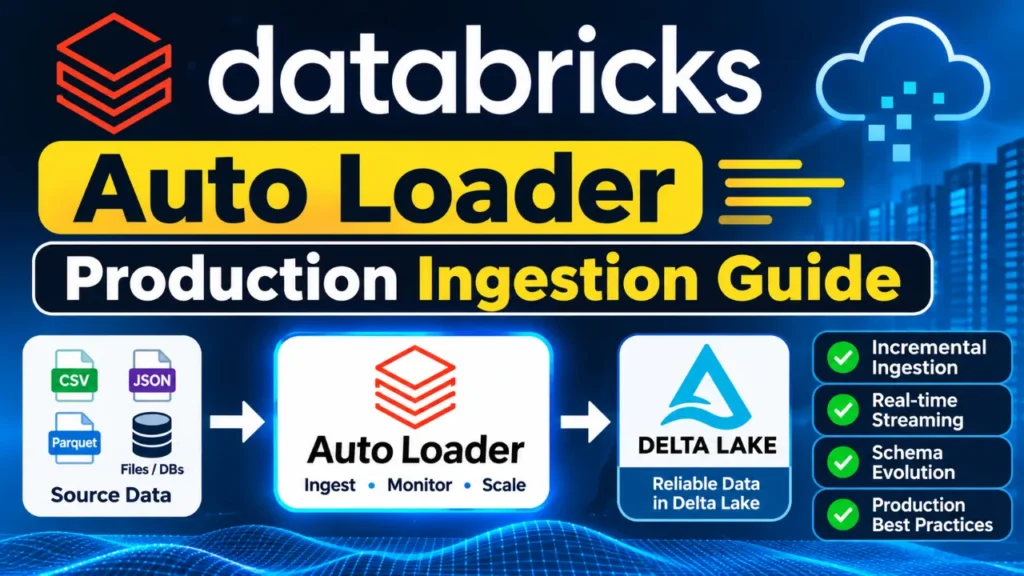
Copy Data Activity in Microsoft Fabric
Learn By Doing It · 2025. Demonstrates CSV-to-Lakehouse ingestion, source/destination setup and column mapping. Best visual starting point for the Fabric pipeline UI.
CSV to Fabric Warehouse: Map Columns
Aleksi Partanen · 2024. Walks through CSV ingestion to Fabric Warehouse, including mapping to destination columns. Useful if the sink table or destination schema is involved.
Actual resolved case · Microsoft Q&A
“The column exists, but the Copy activity cannot find it”
A user reported UserErrorInvalidColumnMappingColumnNotFound for Adjustment Note. They confirmed that mapping by ordinal position worked, while the underlying trigger was not conclusively established.
Actual resolved case · Microsoft Q&A
Same “missing column”; different root cause
Another user saw a mapped CSV column fail even though it was present. Their follow-up identified a changed source delimiter. This is why parser configuration comes before BOM assumptions.
See the delimiter resolutionFind your fastest relevant fix
Which problem do you actually see?
Choose the observation, not the fix someone else used. Each link jumps to an actionable diagnostic.
Useful tool / no upload
Inspect your CSV header in the browser
Choose an approved local CSV file to inspect only its beginning. The checker identifies a UTF-8 BOM, likely delimiter, blank names, hidden characters, and duplicate or ambiguous headers. The file stays in your browser; this page does not send it to our server.
Only the first 128 KB is read locally. The checker supports UTF-8 samples; it does not alter the file, upload data, validate every row, or replicate Fabric’s parser.
Step 1. Find the file and mapping the failed run actually used
- Open the affected Fabric Data Pipeline and inspect the failed Copy activity run’s detailed error. Capture the UTC time, activity/pipeline run ID, missing column name and source/destination.
- Find the resolved source path, including dynamic expressions, folder recursion and wildcard patterns. A successful Preview data action may have used a different sample file.
- Duplicate the pipeline or activity in a nonproduction workspace, point it at one approved failing file and preserve the original vendor feed.
- Record the current source format (delimiter, quote, escape, encoding, First row as header) and explicit Mapping tab entries before modifying anything.
Step 2. Fix a column that is visible but missing from Mapping
A column may be visible in Excel yet still have a different source name once parsed. Confirm it is the source column named by the error, not a destination column or another file’s header.
- In the copy activity, go to Source and configure the file format to match the source file. Use Preview data to inspect the detected columns.
- Open the Mapping tab and compare the actual source name character-for-character with the mapped source name, including spaces and case.
- If the imported mapping is stale, review the Mapping tab’s Import schemas, Clear or Reset options as appropriate. Rebuild or refresh it against the approved failing file and verify destination types.
- Run a small isolated test, then check the destination values—not just a green activity status.
Microsoft documents the Mapping tab’s import, clear and reset controls in its Fabric Copy activity walkthrough. Controls differ by connector and UI release. Clear mappings only if you have captured the original configuration.
Step 3. Fix Prop_0, a single giant column, or a malformed CSV preview
| You see | Likely next check | Safe action |
|---|---|---|
Prop_0, Prop_1 | First row as header is unselected or source has no header | Enable it for a real header; otherwise use intentional ordinal mapping |
| Whole record in one column | Wrong comma/semicolon/tab/pipe delimiter or quote settings | Match the producer’s exact delimiter and quotes; preview again |
| Empty header field error | Blank field name, possibly an extra delimiter in first row | Repair approved source header or normalize in a staging step |
| More columns than defined | Unexpected delimiter, malformed quotes or mixed schemas | Inspect the indicated logical CSV record and matched files |
| Column appears after import but run fails | Different selected file, stale mapping or schema drift | Test the actual failing path and current schema |
Microsoft’s Fabric delimited-text troubleshooting guide describes DelimitedTextColumnNameNotAllowNull and DelimitedTextMoreColumnsThanDefined. These have more specific causes than a generic column-mapping error.
Step 4. Diagnose BOM or hidden characters without damaging data
A UTF-8 BOM is the three-byte prefix EF BB BF. It is not automatically a broken file. If decoding is configured correctly, the BOM may be handled normally; what matters is the actual parsed header compared with the mapped name.
What to look for
- Unexpected
\ufeffin a header field - Non-breaking spaces (
\u00a0) that look like regular spaces - Leading/trailing spaces or tabs
- Incorrect text encoding or already-garbled producer output
- Names that collide after trimming or normalization
What to do instead
- Compare the failing file with the producer’s schema contract
- Configure the correct source encoding first
- Correct only the intended header at a controlled ingestion boundary
- Reject duplicate normalized names instead of guessing
- Retain the untouched raw file for debugging and audit
The local checker above is a quick screening aid. For a controlled byte-level check, run this optional read-only Python diagnostic on an approved copy named sample.csv:
import csv
from pathlib import Path

p = Path("sample.csv")
with p.open("rb") as f:
    raw_start = f.read(3)
print("UTF-8 BOM:", raw_start == bytes.fromhex("EFBBBF"))

with p.open("r", encoding="utf-8-sig", newline="") as f:
    header = next(csv.reader(f, delimiter=","))

for index, name in enumerate(header, 1):
    print(index, ascii(name))

cleaned = [name.replace("\u00a0", " ").strip() for name in header]
if len(set(cleaned)) != len(cleaned):
    raise ValueError("Normalization would create duplicate headers")
This example intentionally raises on UTF-8 decoding problems. For files with a different approved encoding, use the documented source encoding rather than blindly re-encoding the data. The script only inspects the header; it cannot validate the complete CSV or prove the platform’s exact runtime behavior.
Step 5. When preview works but a wildcard pipeline fails
One preview may show the right columns while a scheduled run reads different files. Check for archive files, unexpected folders, changed producer delimiters, optional columns and casing differences.
- Record the actual file path list or logging available for the failed activity.
- Test the same Mapping settings against each representative schema variant, one file at a time.
- Split unlike feeds or add a validation/normalization boundary so only schema-compliant files reach the destination.
- Do not trust success on one file as proof that all wildcard matches are safe.
For an unexpected delimiter, the right long-term repair is a producer contract or a controlled parser setting—not renaming a field until the error disappears. See the resolved delimiter case.
Step 6. Choose the right mapping strategy
Option A — Header-based mapping
Best for consistent named CSVs. Enable First row as header, verify the detected names and import or edit the source-to-destination mapping. Keep the source names stable across all input files. Confirm destination types.
Option B — Ordinal mapping
Only for controlled column order. With First row as header unselected, Fabric documents explicit source ordinals beginning at 1; preview names like Prop_0 begin at 0. Do not confuse the two.
Ordinal mapping worked for the user in this Microsoft Q&A case, but it is a workaround, not proof BOM caused the problem. Since columns are matched by position, a later reorder may silently swap values even when types remain compatible. Validate column count and order before every production feed.
References: Fabric delimited text settings and ADF’s formal ordinal mapping semantics. Do not apply an Azure Data Factory-only UI instruction to every Fabric connector without verification.
Step 7. Prove the fix before rerunning production
“Pipeline succeeded” is not enough. Especially with ordinal mapping, a green run can still conceal a header row loaded as data or silently swapped column values.
- Scope: Only intended files were selected. The resolved input list matches the run plan.
- Headers: Expected names/order and source-to-destination mappings are documented.
- First row: The first actual data record is present and the header has not been inserted into the destination.
- Counts: Logical CSV record counts reconcile, including quoted multiline fields; physical line counts can differ.
- Values: Sample IDs, text fields, dates, nulls and business totals match, with no swapped columns.
- Retries: Append, overwrite or merge behavior cannot duplicate previously copied rows on reruns.
Copy this when raising a support ticket
Pipeline / activity ID and UTC run time:
Exact error code and sanitized missing column:
Resolved source file path or wildcard set:
Source format: delimiter, quote, escape, encoding:
First row as header / skip-line configuration:
Detected header and Mapping tab entries:
Source and destination schema versions:
Result of single-file test vs batch run:
First output row, row counts and retry mode:
Common questions
Is UTF-8 BOM always responsible for “column not found”?
No. Microsoft documents UTF-8 options and several independent CSV parsing errors. Check whether the actual parser retains an unexpected marker, then check delimiter, mapping, selected file and schema.
Why does Preview work but the Copy activity still fail?
Preview can examine one file while the activity resolves a different path or multiple wildcard files. Imported mapping can also be outdated. Identify the actual failed input and compare its detected schema with the mapping.
Why do I see Prop_0 instead of the header name?
Fabric documents generated preview names such as Prop_0 when First row as header is unselected. Enable the option for a genuine header, or use explicit ordinal mapping for intentionally headerless files.
Can I turn off First row as header to make the error disappear?
Only with a complete alternative strategy. If the source file still contains a header, skipping it separately is essential or the header can be loaded as data. Validate the exact first output row.
Does “Skip incompatible rows” fix a missing source mapping?
Not as a general remedy. It is intended for certain incompatible-row errors, and it can cause lost rows. Diagnose the named error first and reconcile every rejected record if you use fault tolerance.
Does the browser CSV header checker upload my data?
No. It uses browser-side JavaScript and reads only up to 128 KB from the chosen local file. It is a screening tool for UTF-8 header issues, not a substitute for pipeline logs, complete file validation or an authorized enterprise data-processing process.
Official documentation and original resolved cases
These sources are provided so you can inspect the actual product instructions and support-thread outcomes—not just trust an unsourced checklist.
- Microsoft Learn: Fabric delimited-text format, header and ordinal behavior
- Microsoft Learn: Delimited-text error-specific troubleshooting
- Microsoft Learn: Copy activity and Mapping tab
- Microsoft Learn: ADF explicit mapping and ordinals
- Microsoft Q&A: Missing Adjustment Note column; ordinal mapping resolved (original case is ADF)
- Microsoft Q&A: Missing CSV column; source delimiter change confirmed (original case is ADF)
Independent review, November 22, 2026. Videos are tutorials for the relevant Fabric UI; original support cases are from Azure Data Factory and illustrate failure modes, not guaranteed identical Fabric results. No production Fabric pipeline was changed or executed for this guide.