OneLake Shortcut Authorization Failed: Cross-Workspace 403 Fix Guide
When Fabric Lakehouses span multiple workspaces, OneLake shortcut authorization failed errors (403 Access Denied) are common. This typically signals a systemic failure in the **delegated identity security chain**, not a simple missing Read permission.
This comprehensive guide reveals how the identity delegation breaks between workspaces and provides a systematic, three-step fix hierarchy that resolves the underlying identity context failure, required roles, and credential management issues.
💡 Thinking about starting a small side income online?
Many creators start with simple tools and workflows — no investment required.
See how creators do it → CreatorOpsMatrix.comOneLake Shortcut Authorization Failed – Understanding the Cross-Workspace Security Handshake Failure
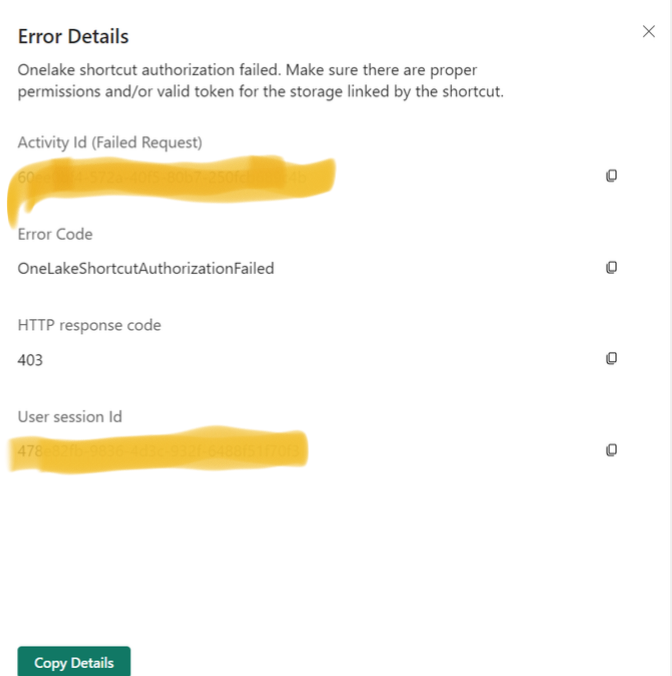
For internal OneLake shortcuts, the query engine must pass the calling user’s identity (Single Sign-On / SSO Passthrough) from Workspace A (Consumer) to Workspace B (Source) for authorization. The 403 error usually means this passthrough mechanism failed.
Initial Diagnosis: Control Plane vs. Data Plane
Before applying fixes, run this diagnostic test:
- If an **Admin/Member/Contributor** (Control Plane roles) can read the shortcut, but a **Viewer** (Data Plane role) gets a 403: The core SSO passthrough is likely *working*, but the **Viewer is missing explicit OneLake Data Access Roles** on the source path.
- If **ALL** users, including Admins, get a 403: The core **Identity Delegation Mechanism (Fix 1 below)** is fundamentally broken at the source Lakehouse level.
The successful access by an elevated role demonstrates how implicit Write permissions mask missing granular security checks for Viewers.
Critical Fix 1: Mandatory Source Identity Delegation Configuration
The leading cause of cross-workspace 403 failures is the **Source Lakehouse’s SQL Analytics Endpoint** being configured to use a fixed identity, which blocks the necessary SSO passthrough.
Configure User Identity Mode (The Required Setting)
Navigate to: **Source Workspace → Source Lakehouse → SQL Analytics Endpoint → Settings tab (Security)**.
The endpoint must be set to **User identity mode**.
Impact: This mode forces the analytical engine to use the **signed-in user’s identity** for both authentication and authorization, enabling identity delegation across workspaces. It also mandates the use of **OneLake Security Roles** for granular access and **ignores** T-SQL RLS/CLS.
Conversely, the **Delegated identity mode** (historically “Fixed”) uses the Item Owner’s identity, discarding the calling user’s SSO identity and causing an immediate 403 failure for consumers.
Essential Control Plane Role Assignment
Regardless of the identity mode, the calling user must possess at least the **Viewer role** on **Source Workspace B**. Add the consuming user/group to the source workspace settings.
Critical Fix 2: Granular Role Assignment & External Credentials
Part A: Assigning Granular OneLake Data Access Roles
If Fix 1 is applied but **Viewers** still fail (matching the initial diagnosis), the issue is missing data plane authorization. Viewers require explicit, granular roles on the target data path:
- Navigate to: **Source Lakehouse → OneLake Security** tab.
- Add the calling user (or group) and assign the **Read** role for the specific folder or table to which the shortcut points.
Part B: The Fix for External ADLS Gen2 Shortcuts
If the shortcut points to an external resource (e.g., ADLS Gen2), the focus shifts from user passthrough to the integrity of the fixed credential. **Fixed Credentials (SAS/Account Keys) are a failure vector** due to rotation/expiry.
Best Practice: Use Fabric Workspace Identity
- Create: Go to **Consumer Workspace → Settings → Workspace Identity → Create** (requires Admin role).
- Authorize: Assign the created Workspace Identity (the service principal) the appropriate **Azure RBAC role** (e.g., *Storage Blob Data Reader*) on the target ADLS Gen2 storage account.
This eliminates credential expiration issues entirely.
Advanced Constraint: Capacity SKU Conflict
If firewalled ADLS Gen2 access fails persistently with 403 errors, even after correct Workspace Identity setup, the cause may be the capacity tier. **P SKUs** (e.g., P1) have reported incompatibility with **Trusted Workspace Access** required for firewalled ADLS, demanding an architectural upgrade to an **F SKU**.
Critical Fix 3: RLS UI False Positive Bypass
Sometimes, the “Authorization Failed” error is a **false positive** caused by a known limitation when **Row-Level Security (RLS)** is applied to the target table in the source Lakehouse. The Lakehouse Explorer preview fails to load metadata but the query engine is fine.
Protocol for Validation: Skip the Preview
To definitively diagnose a UI display issue versus a genuine failure, bypass the Lakehouse Explorer preview and execute a **direct query** against the shortcut table using the SQL Analytics Endpoint or a Spark notebook in the Consumer Workspace:
-- Validate shortcut (circumvents RLS preview limitation)
SELECT TOP 10 * FROM [shortcut_table_name]

-- Result: Data returns = shortcut operational ✓
-- Result: Empty or 403 persists = revisit Fixes 1 & 2
If the direct query succeeds, the shortcut and identity delegation are functional; the 403 is localized to the UI rendering.
Complete OneLake Shortcut Authorization Failed Diagnostic Checklist
Apply this systematic checklist whenever shortcuts return 403 errors. **Always start with the Source Lakehouse Identity.**
- ✓ Fix 1 (Identity Passthrough): Source Lakehouse SQL Endpoint → User Identity Context = **”User”** (not Delegated/Fixed).
- ✓ Control Plane Role: Calling user explicitly added as **Viewer** on the **Source Workspace**.
- ✓ Data Plane Role: Calling user assigned **”Read”** OneLake role for the specific shortcut path.
- ✓ Functionality Test: Execute **SELECT TOP 10 * FROM shortcut** (bypasses Explorer preview).
- ✓ External Fix (if applicable): **Workspace Identity** configured and granted **Storage Blob Data Reader** on ADLS Gen2.
Frequently Asked Questions: OneLake Shortcut Authorization Failed
Comprehensive troubleshooting Q&A covering common secondary authorization issues.
Why does shortcut work locally but fail cross-workspace?
Source Lakehouse SQL endpoint defaults to “Delegated” (Fixed) identity context rather than “User”. Change to **User** mode to delegate the calling user’s Entra ID across workspaces for authorization validation (see Critical Fix 1).
Do users require Lakehouse Admin permissions for shortcuts?
No. The **Viewer** role on the source workspace combined with the **Read** OneLake Data Access role on the shortcut path suffices. Admin is only required for shortcut creation/management, not consumption.
How long for identity context changes to propagate?
Typically **2-3 minutes**. Test immediately with a direct SQL query post-save. Note that the Lakehouse Explorer UI caching may persist the old error display slightly longer.
Why Lakehouse Explorer displays 403 while SQL succeeds?
This is a known RLS preview conflict (Fix 3). Row-Level Security blocks the Explorer’s attempt to render a data preview. Execute **SELECT TOP 10 * FROM shortcut** to confirm operational status.
Why do ADLS shortcuts expire unlike OneLake shortcuts?
ADLS Gen2 shortcuts traditionally use expiring SAS tokens or account keys. Pure OneLake shortcuts leverage permanent Entra ID delegation. **Workspace Identity** provides a permanent solution for ADLS shortcuts (see Critical Fix 2B).