Windows 11 KB5127936: How to Enable the New Customizable Right-Click Menu
Windows 11’s redesigned File Explorer context menu is rolling out with KB5127936. It opens faster, reduces clutter and lets you control built-in commands, app extensions and the layout of common actions. This guide checks your Windows build, explains how to enable the new menu with ViVeTool, and shows how to move unwanted items such as Ask Copilot out of the main right-click menu.
Tech Based: Windows 11 26H2 October update. A detailed Release Preview walkthrough of build 26300.9807, including the new context menu and other October changes. This predates the final KB5127936 build. Watch on YouTube.
Pureinfotech: Customizable context menu preview. A focused demonstration of the feature in an earlier Windows 11 Experimental build. Use it to understand the design, not as a guide to the final update build. Watch on YouTube.
Update checked November 2, 2026: Microsoft lists KB5127936 as the October 28 preview update for Windows 11 25H2 and 26H2. The context-menu feature uses a gradual rollout, so installing the update does not guarantee that the new menu will appear immediately on every PC.
Quick answer: how to get the new Windows 11 right-click menu
Install the October 28, 2026 preview update KB5127936 on Windows 11 25H2 or 26H2. The target builds are 26200.9818 for 25H2 and 26300.9818 for 26H2. If the new menu has not reached your PC, Windows Latest and Pureinfotech report that ViVeTool feature ID 60813048 can enable the customization experience. Restart after using the command, then right-click a file and look for Customize menu.
What do you want to do?
Advertisements
What’s new in the Windows 11 customizable right-click menu?
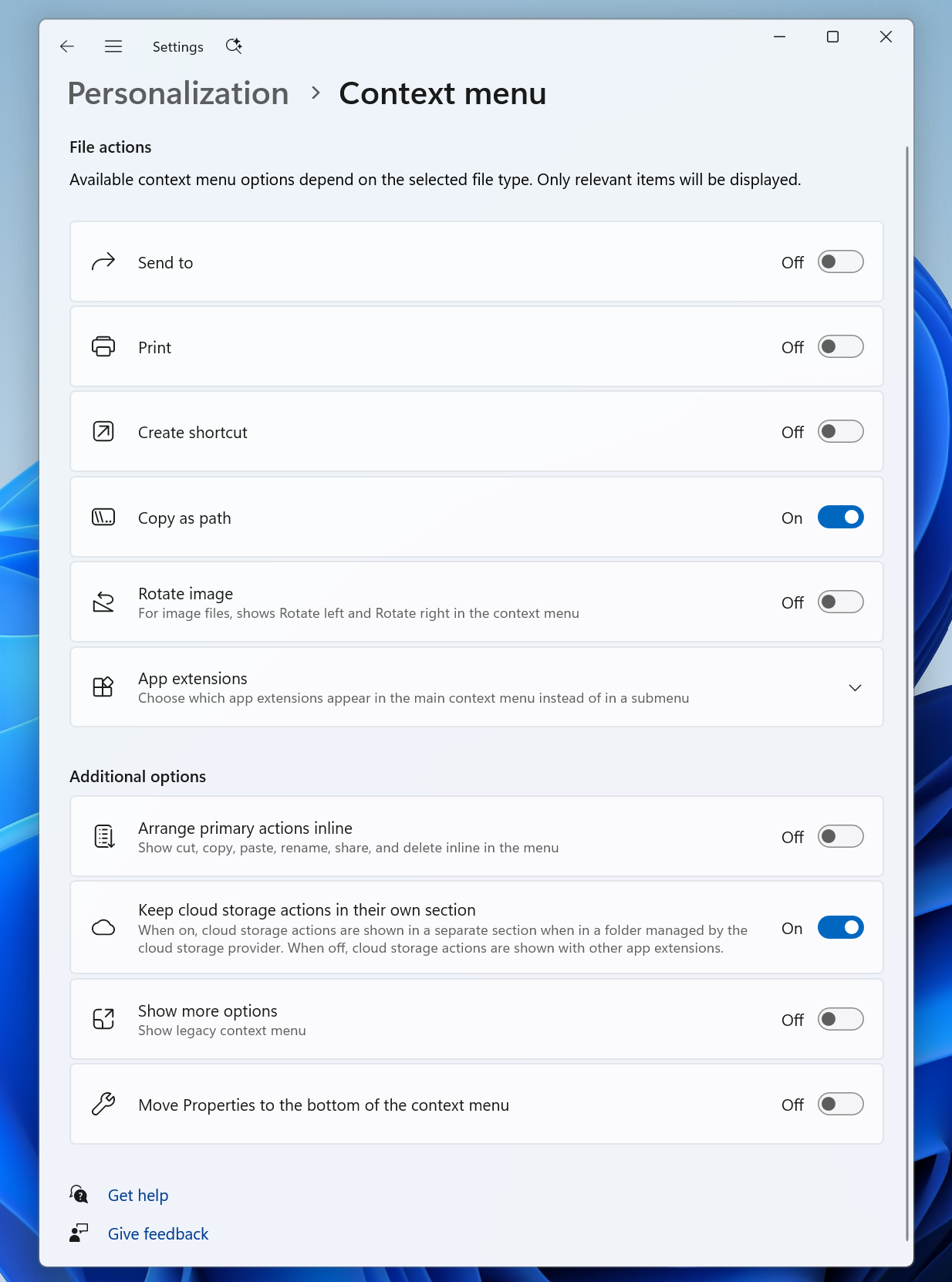
Microsoft says the updated File Explorer context menu opens more quickly, reduces top-level clutter and gives users more control over which Windows commands and app extensions appear. The new Customize menu entry at the bottom opens a dedicated page under Settings > Personalization > Context menu.
The change matters because app extensions can add extra work when the context menu opens. Microsoft said it redesigned the experience to make the menu faster and keep less-used options accessible without putting every extension directly in the main list.
| Area | Earlier experience | Updated experience |
|---|---|---|
| Opening speed | Microsoft acknowledged that the menu could feel cluttered and sluggish, especially when app extensions were involved. | Microsoft says the redesigned menu opens more quickly and reduces clutter. |
| Built-in commands | Users had less control over which commands appeared in the main menu. | Toggle commands such as Send to and Create shortcut, and add Print where supported. |
| App extensions | Extensions could appear alongside the main actions. | Choose which extensions appear in the main menu or submenu, or hide the app extensions submenu. |
| Common actions | Cut, Copy, Paste, Rename, Delete and Share appeared as an icon row. | Choose to display these actions inline in the menu. |
| Properties | Position depended on the menu layout. | Move Properties to the bottom of the context menu. |
In its hands-on test of one image file, Windows Latest counted 20 entries below the action icons before the update and eight top-level entries afterward. Treat those numbers as that reviewer’s example, not a fixed count for every PC: commands vary according to file type, installed apps and extensions.
Check whether your Windows 11 PC supports KB5127936
Press Windows + R, enter winver, and press Enter. Check the version and OS build shown in the About Windows window. You can also open Settings > System > About and review Windows specifications.
Windows 11 KB5127936 compatibility checker
Choose your Windows version to see whether this preview update applies to your PC.
Select your Windows version
The checker will show the target build or explain why you need a different update path.
How to install Windows 11 KB5127936
KB5127936 is an optional non-security preview update dated October 28, 2026. Microsoft lists it for Windows 11 25H2 and 26H2. Follow these steps before trying ViVeTool.
- Open Settings > Windows Update.
- Turn on Get the latest updates as soon as they’re available if the option is shown.
- Select Check for updates.
- Look for 2026-10 Preview Update (KB5127936) and install it if offered.
- Restart the PC when installation finishes.
- Run
winveragain. Confirm build26200.9818for 25H2 or26300.9818for 26H2.
After restarting, right-click a file in File Explorer. If Customize menu appears at the bottom, the feature is available and you do not need ViVeTool.
Important: Microsoft uses a gradual feature rollout. A PC can have the correct KB and build while the new context-menu controls are still not enabled for that device. The feature flag workaround below is reported by independent Windows specialists; Microsoft does not support ViVeTool.
How to enable the new right-click menu using ViVeTool
Advertisements
If your PC is on the correct 25H2 or 26H2 build but the new menu is still missing, Windows Latest and Pureinfotech report that ViVeTool ID 60813048 enables the customizable context-menu settings. ViVeTool is a third-party utility for changing Windows feature flags.
- Open the official ViVeTool releases page on GitHub.
- Download the package that matches your processor: IntelAmd for x64 Intel or AMD PCs, or SnapdragonArm64 for supported Arm64 PCs.
- Extract the ZIP file. For this example, place the extracted files in
C:\ViVeTool. - Right-click Start and open Terminal (Admin).
- Move to the extracted folder and run the primary command shown below.
- Restart Windows, then right-click a file in File Explorer and look for Customize menu.
Copy the ViVeTool command
Use the first command before trying the fallback combinations. Do not run every command unless the previous one fails.
.\ViVeTool.exe /enable /id:60813048Run commands from the folder where ViVeTool.exe was extracted. If you used C:\ViVeTool, first enter cd C:\ViVeTool in Terminal (Admin).
Primary command:
.\ViVeTool.exe /enable /id:60813048First fallback: use this only if the primary ID does not make the option appear.
.\ViVeTool.exe /enable /id:60813048,49453572Second fallback: try this if the first fallback also fails.
.\ViVeTool.exe /enable /id:60813048,61934903,49453572To undo the primary change:
.\ViVeTool.exe /disable /id:60813048How to customize the menu and move Ask Copilot out of the main list
Once the new menu is available, right-click a file and select Customize menu. You can also open Settings > Personalization > Context menu. Microsoft groups the controls into file actions, app extensions and additional layout options.
| Settings area | What you can change | Useful setup |
|---|---|---|
| File actions | Turn built-in commands such as Send to and Create shortcut on or off. Add Print, and manage options such as Copy as path and Rotate image. | Keep only commands you actually use. Turn on Copy as path if you regularly copy file locations. |
| App extensions | Choose which app extensions appear in the main menu or in a submenu, or hide the app extensions submenu. | Move extensions such as Ask Copilot or Edit with Clipchamp away from the main menu if you do not use them there. |
| Additional options | Show common actions inline, keep cloud-storage actions in their own section, show more options and move Properties to the bottom. | Enable inline actions if you prefer text entries; enable Show more options when you rely on legacy context-menu commands. |
Can you remove Ask Copilot completely? The new setting controls where app extensions appear in the context menu. You can move an extension out of the main list or hide the app extensions submenu. This is not the same as uninstalling Copilot or removing the app from Windows.
How to get a more familiar Windows 10-style menu
- Open Settings > Personalization > Context menu.
- Under Additional options, enable Arrange primary actions inline if you prefer Cut, Copy, Paste, Rename, Delete and Share as menu entries instead of an icon row.
- Enable Move Properties to the bottom of the context menu if that layout suits your workflow.
- Enable Show more options when you need older shell extensions or legacy app commands.
For a one-time shortcut to additional options, Microsoft also documents holding Shift while right-clicking the desktop.
Other useful changes included in KB5127936
The context menu is the main focus of this guide, but Microsoft’s October preview update includes several other changes worth knowing about.
- File Explorer search: Search results use a more consistent layout for details such as file name, location and date.
- Address bar: You can use the tilde character to navigate to your user profile folder and subfolders, such as
~\AppData. - Folder Options: Dark mode support is added to the File Explorer Folder Options dialog.
- AutoPlay: The dialog is modernized with dark-mode support and improved text-scaling behavior.
- Cloud rebuild: Windows Recovery can reinstall Windows using an image and drivers downloaded from Windows Update. Review the file-removal and sanitization choices carefully before starting a rebuild.
- Remote Desktop: The update fixes a documented issue where some non-admin users could not connect to remote devices with Administrator protection enabled and received error
0xC000000D. - Microsoft Edge: Accelerated app launch improvements are available with Edge version 150 or later on supported Windows versions.
Does KB5127936 work on Windows 11 24H2?
KB5127936 is listed for Windows 11 25H2 and 26H2, not 24H2. Starting with the October 2026 release, Microsoft says non-security preview updates are available only for 25H2 and 26H2. Windows 11 24H2 Enterprise and Education editions continue receiving monthly security updates, but no longer receive non-security preview updates.
Windows 11 24H2 Home and Pro reached end of updates on October 13, 2026. Microsoft recommends moving to a supported Windows 11 release. The separate 26H2 enablement package is KB5121794; it is not the context-menu update itself. Check Windows Update for the feature update offered to your device before installing anything manually.
See our Windows 11 24H2 end-of-support guide for the edition-specific support dates.
Windows 11 KB5127936 FAQ
What does Windows 11 KB5127936 change?
Which Windows 11 builds include the new right-click menu?
Why is Customize menu missing after installing KB5127936?
How do I enable the new context menu with ViVeTool?
.\ViVeTool.exe /enable /id:60813048. Restart Windows and check File Explorer again. Only try the documented fallback IDs if the primary ID does not work.Can I remove Ask Copilot from the Windows 11 right-click menu?
How can I restore the old Windows 10-style context menu?
Does KB5127936 install on Windows 11 24H2?
Does KB5127936 fix Remote Desktop error 0xC000000D?
Sources and verification
We prioritize Microsoft’s release notes for supported versions and features, then use established Windows publications for hands-on ViVeTool testing. Video demonstrations below are clearly labelled as preview-build footage where applicable.
- Microsoft Support: October 28, 2026 — KB5127936 (Builds 26300.9818 and 26200.9818) Preview — official update contents, context-menu settings and fixes.
- Microsoft Windows Insider Blog: Improving File Explorer and Context Menu — Microsoft’s explanation of the redesign and settings sections.
- Windows Latest: Windows 11’s faster, customizable right-click menu released — hands-on test and ViVeTool instructions.
- Pureinfotech: Complete list of ViVeTool codes for Windows 11 — primary and fallback feature IDs.
- ViVeTool official GitHub releases — download source and processor-package information.
- Microsoft Lifecycle: Windows 11 Home and Pro — version support dates.
- Microsoft Support: KB5121794 enablement package — separate 26H2 version-upgrade information.
Research and editorial review by R.K., Creator and Business Economics Analyst. Last checked November 2, 2026.