Copy Activity Column Not Found Error: Fix CSV/UTF-8 BOM Issues in Fabric Pipeline
If you work with Fabric pipelines long enough, you will eventually hit a “Copy Activity column not found CSV” error. The pipeline fails, yet the column is visible in the CSV header, which makes the problem feel random and very hard to trust in production.
This troubleshooting guide explains why Copy Activity cannot see some CSV columns, how invisible characters break header recognition, and how to repair the file or pipeline so loads become reliable again. For deeper background on how Fabric parses delimited text, open the official Delimited text format in Data Factory article in a new tab.
💡 Thinking about starting a small side income online?
Many creators start with simple tools and workflows — no investment required.
See how creators do it → CreatorOpsMatrix.com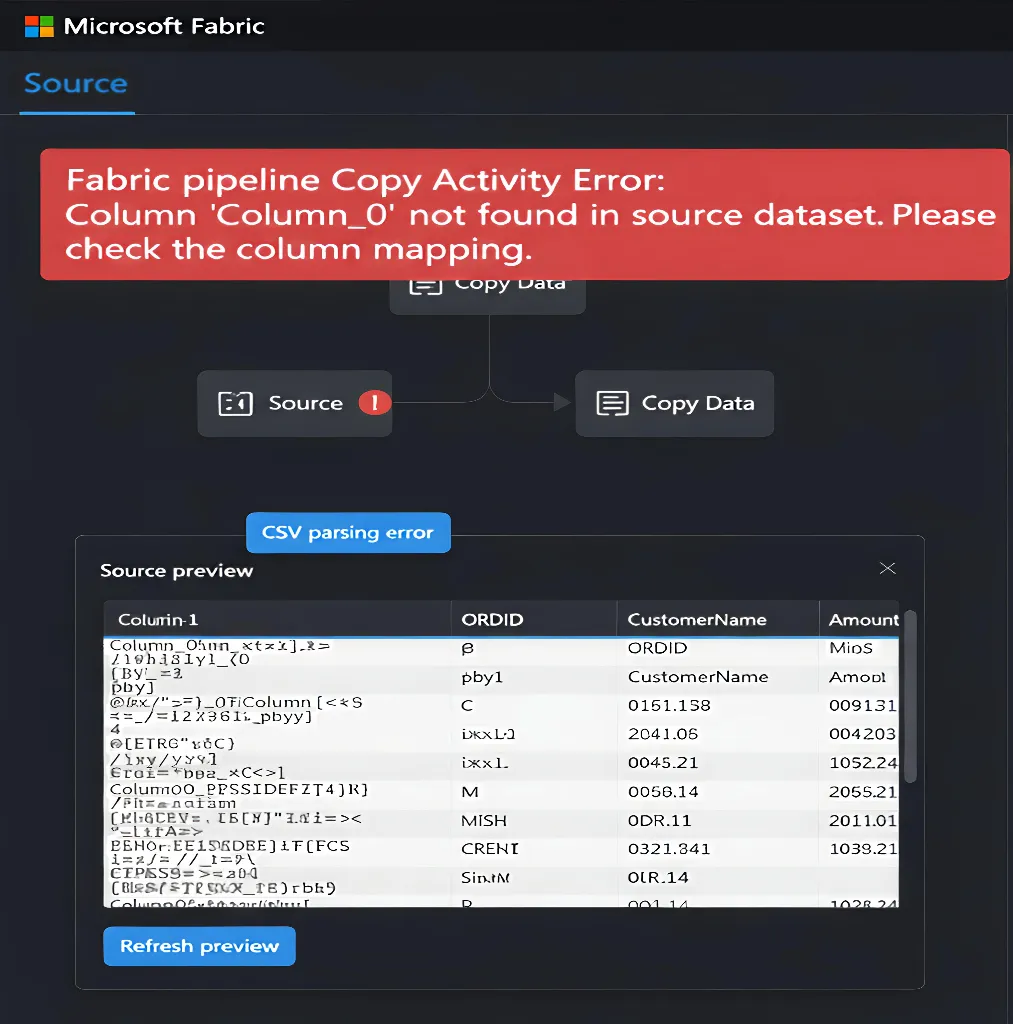
Copy Activity Column Not Found CSV Ghost Columns
In Fabric and Azure Data Factory, Copy Activity reads each CSV header as an exact string. If extra bytes or special spaces are present, the internal header value no longer matches the name you map in the activity. That mismatch leads to the “Copy Activity column not found CSV” error even when the file looks correct in Excel or a viewer.
Real cases in Microsoft Q&A describe Copy Activity not recognizing an existing CSV column until the file is resaved as UTF‑8 without BOM and the header is cleaned. You can search for “Copy Activity not recognizing an existing column in a CSV file” on Microsoft Q&A to compare those screenshots with your own Source preview.
If you want to see how Copy Activity is designed to read, process, and write data, the overview page How to copy data using copy activity is a good reference while you debug.
Main Causes of Copy Activity Column Not Found CSV Errors
Almost every “Copy Activity column not found CSV” incident comes from the same three invisible culprits. Once you know them, you can diagnose new feeds in minutes instead of hours.
- UTF‑8 Byte Order Mark (BOM): extra bytes at the very start of the file attach to the first header, so Copy Activity sees a longer name such as “CustomerID”.
- Non-breaking spaces: headers that use non-breaking spaces or other special whitespace instead of normal spaces produce different strings for Fabric than the ones you type in mappings.
- Leading and trailing whitespace: extra spaces before or after header text mean “CustomerID ” and “ CustomerID” become different column names from “CustomerID”.
The Fabric and Azure articles on delimited text format in Azure Data Factory use the same engine principles, so they are also useful if you run Copy Activity from Azure into Fabric.
Step 1: Diagnose CSV Header Problems with Source Preview
Start by proving that invisible characters exist. The Source preview shows the exact header strings that Copy Activity uses, which makes it the best first diagnostic step.
Open your pipeline, select the Copy Activity, go to the Source tab, and click Preview data. Expand the list of columns on the left and compare each header with the expected names in your mapping or target table.
Pay extra attention to the first column. If it starts with odd characters such as “” or seems to have extra blanks around the text, you are dealing with a BOM or whitespace issue and can move straight to the fixes below.
Step 2: Fast Pipeline Fixes for Copy Activity Column Not Found CSV Errors
Sometimes you need the pipeline running again before you have time to fix the CSV source. In those cases, configuration tweaks in Copy Activity can bypass header problems and buy you time.
Use explicit mapping and ordinal positions
On the Mapping tab, avoid implicit mapping that relies on matching header text. Import the schema, then map each destination column by the ordinal position of its source column.
For example, map “Column 1” to CustomerID, “Column 2” to OrderDate, and so on. This approach tells Copy Activity to follow column order instead of header text. If you want to understand how mapping works under the hood, see Schema and data type mapping in copy activity.
Skip header row and define schema manually
If the column order rarely changes but header names do, treat the first row as data instead of a header. Configure the dataset options so the source does not use the first row as field names, then define your own schema in the Copy Activity or the destination table.
This trick avoids header parsing altogether, which makes Copy Activity less sensitive to BOM, non-breaking spaces, or trailing spaces in the incoming CSV file.
Step 3: Clean CSV Encoding and Invisible Characters at the Source
Quick mapping solutions are useful, but the best fix for a persistent Copy Activity column not found CSV problem is cleaning the file itself. Once the header row is clean, every downstream pipeline becomes simpler.
Remove UTF‑8 BOM from the CSV file
Open the CSV in an editor such as Visual Studio Code or Notepad++. In VS Code, use the encoding control in the status bar, choose “Save with Encoding”, and switch from “UTF‑8 with BOM” to plain “UTF‑8”. Save the file again and rerun the pipeline.
This change removes the BOM bytes that attach to the first column header. After that, Column 1 in Source preview should match the name you expect.
Replace non-breaking spaces and trim whitespace
Still in the editor, focus on the header line. Search for unusual spaces by selecting them and pasting them into the Find box, then replace them with a normal space or nothing. After that, remove any leading or trailing spaces from each header value.
For more examples of typical CSV parsing problems and their fixes, Microsoft provides a separate article called Troubleshoot the delimited text format connector, which is worth reviewing if you see other delimiter or quote issues.
Step 4: Stage and Normalize Data When You Cannot Change the CSV
Many teams receive CSV files from vendors or other internal systems where they cannot control how the file is generated. In that case, the cleanest pattern is to stage the file first and normalize it as a second step.
Stage as binary, then clean with notebooks
Configure the first pipeline to copy the CSV into a raw Lakehouse folder without parsing any headers. Next, use a Notebook or Spark job to read the raw file, remove BOM and strange whitespace programmatically, and write a sanitized version into a curated folder or table.
This design separates ingestion from transformation. It also matches how Microsoft samples describe bronze, silver, and gold layers for data in Fabric, which keeps production tables stable even if vendor files change.
Prevent Copy Activity Column Not Found CSV Issues with Dataflow Gen2
Once you have fixed the immediate error, it is worth designing for the next new feed. Dataflow Gen2 can absorb schema drift and gives you a visual way to clean columns before they land in tables.
The Microsoft Learn article How to handle schema drift in Dataflow Gen2 shows how to let Dataflows react to new or missing columns without breaking downstream steps. Using a Dataflow as the entry point for CSV files shifts complexity out of Copy Activity and into a reusable ingestion layer.
If your team is planning a Fabric-wide ingestion pattern, read the schema drift guidance alongside the Copy activity overview so your Lakehouse or warehouse design follows the supported patterns.
Copy Activity CSV Ghost Column Health Check
Use this short health check whenever a pipeline throws a Copy Activity column not found CSV error. It helps you separate file issues from configuration problems in under ten minutes.
- Confirm that the error only appears in CSV-based pipelines and not in other sources, which narrows the scope to encoding and header parsing.
- Run Source preview on the Copy Activity and compare each detected header name with the expected name in your mapping or destination schema.
- Try explicit name mapping and then ordinal mapping to see whether the pipeline can succeed when column order is used instead of header text.
- Open a sample CSV in a code editor, check the encoding, and remove any BOM or suspicious spaces from the header row.
- Introduce a raw staging zone and, where possible, a Dataflow Gen2 or notebook that takes responsibility for cleaning and normalizing headers.
When you need the official reference while you apply this checklist, keep the pages for Delimited text format and schema drift in Dataflow Gen2 open beside your pipeline.
Burning Questions About Copy Activity Column Not Found CSV Errors
This section groups real troubleshooting questions about the Copy Activity column not found CSV error. Click any question title to expand the answer and see the next action.
Copy Activity Error and Troubleshooting Questions
Why does Copy Activity say a CSV column is missing when I can see it?
The column is present, but the header string that Copy Activity reads is not the same as the name you mapped. Invisible characters such as a UTF‑8 BOM, non-breaking spaces, or extra spaces around the header change the value, so Fabric treats it as a different column name.
How do I fix the Copy Activity column not found CSV error fast?
Use the Mapping tab to switch from implicit mapping to explicit mapping by ordinal. Map source column 1 to the first destination field, column 2 to the second, and so on. This lets the pipeline run while you plan a more permanent fix for the header row.
How do I confirm that BOM or invisible characters are breaking my CSV headers?
Open the Copy Activity, go to the Source tab, and use Preview data. Expand the column list and look at the exact header names that Fabric detects. If you see “” before the first header or odd gaps and extra blanks at the end of names, invisible characters are causing the problem.
Why does the Copy Activity column not found CSV error often affect only the first column?
The UTF‑8 BOM appears at the very start of the file, so it attaches only to the first header. That is why column 1 often shows as “ColumnName” or fails to match at all, while the remaining headers work as expected.
What is the safest way to clean a CSV file with broken headers?
Open the file in a code editor such as Visual Studio Code or Notepad++, switch the encoding from “UTF‑8 with BOM” to plain “UTF‑8”, and save the file again. Then clean the header line by replacing any unusual spaces with normal spaces and trimming leading or trailing whitespace from each header.
Copy Activity Mapping and Configuration Questions
How do I use explicit mapping to fix Copy Activity column not found CSV issues?
On the Mapping tab, import the schema, then turn off automatic name matching. Map each destination column to a source column by its position (1, 2, 3, and so on). This approach works even when header text includes hidden characters or minor spelling differences.
When should I configure Copy Activity to skip the header row?
If the column order is stable but the header row is unreliable, tell Fabric to treat the first row as data and provide your own schema. This stops Copy Activity from using broken header names and lets you keep consistent field names in the destination.
Does changing column delimiters or quote characters help with column not found errors?
Delimiter and quote settings affect how fields split, not header encoding. They are important, but most column not found CSV errors come from header characters, so start with Source preview and header cleanup before changing delimiters.
CSV Encoding and File Quality Questions
How do I remove a UTF‑8 BOM that breaks Copy Activity?
Use a code editor that shows encoding. In VS Code, click the encoding label in the status bar, choose “Save with Encoding”, and select “UTF‑8” instead of “UTF‑8 with BOM”. The next time the pipeline runs, the first header no longer carries the extra BOM bytes.
Can non-breaking spaces in headers cause Copy Activity column not found CSV errors?
Yes. Non-breaking spaces look identical to normal spaces on screen but have a different code point. Fabric sees them as different characters, which means “Order Date” with a non-breaking space does not match “Order Date” in your mapping.
Why do trailing spaces in header names cause Copy Activity to fail?
Header values are matched as exact strings. “CustomerID ” with a trailing space is not equal to “CustomerID”, so Copy Activity treats them as separate names and cannot find a matching column.
Staging and Dataflow Gen2 Design Questions
What should I do if I cannot change the source CSV file?
Introduce a staging layer. First, copy the file into a raw Lakehouse folder as binary or basic text. Then use a Notebook or transformation step to remove BOM and clean headers before loading curated tables.
How can Dataflow Gen2 help with CSV header and schema drift problems?
Dataflow Gen2 can detect new columns, rename headers, and handle schema drift without breaking downstream models. Using a Dataflow as the entry point for CSV sources gives you a central place to fix header and type issues before data reaches Lakehouse or warehouse tables.
When should I use a staging pattern instead of a direct Copy Activity into a table?
Use a staging pattern when CSVs come from external vendors, contain mixed encodings, or change structure frequently. Staging gives you a repeatable cleaning and normalization step so that a small file change does not break production tables.
Copy Activity User and Learning Questions
What should a non-admin try before escalating a Copy Activity CSV issue?
A non-admin can capture a sample file, run Source preview, take screenshots of the detected headers, and test a simple pipeline that reads only that CSV into a staging folder. Sharing those details with an admin or engineer speeds up root-cause analysis.
When should I open a Microsoft support ticket for Copy Activity column not found CSV errors?
Open a ticket after you have confirmed that the file loads correctly in a text editor, that mapping and delimiters are set as expected, and that the problem repeats with a small, reproducible sample. Include the sample file, pipeline configuration screenshots, and logs in the support request.
Which Microsoft Learn articles help me go deeper on CSV handling in Fabric?
The best starting points are the Fabric page for delimited text format and the schema drift guidance for Dataflow Gen2. Reading those together gives you both the low-level CSV settings and the high-level ingestion patterns used in production.